

Starting a new school term often means relying more heavily on phones, tablets and laptops. Devices may be used for homework, school apps, online lessons, travel, communication and storing important coursework. A quick check in late August can help avoid problems during the first week back.
If you are looking for back to school laptop and phone setup in Horden, use this checklist to prepare your child’s device safely and practically.
1. Check the device before term begins
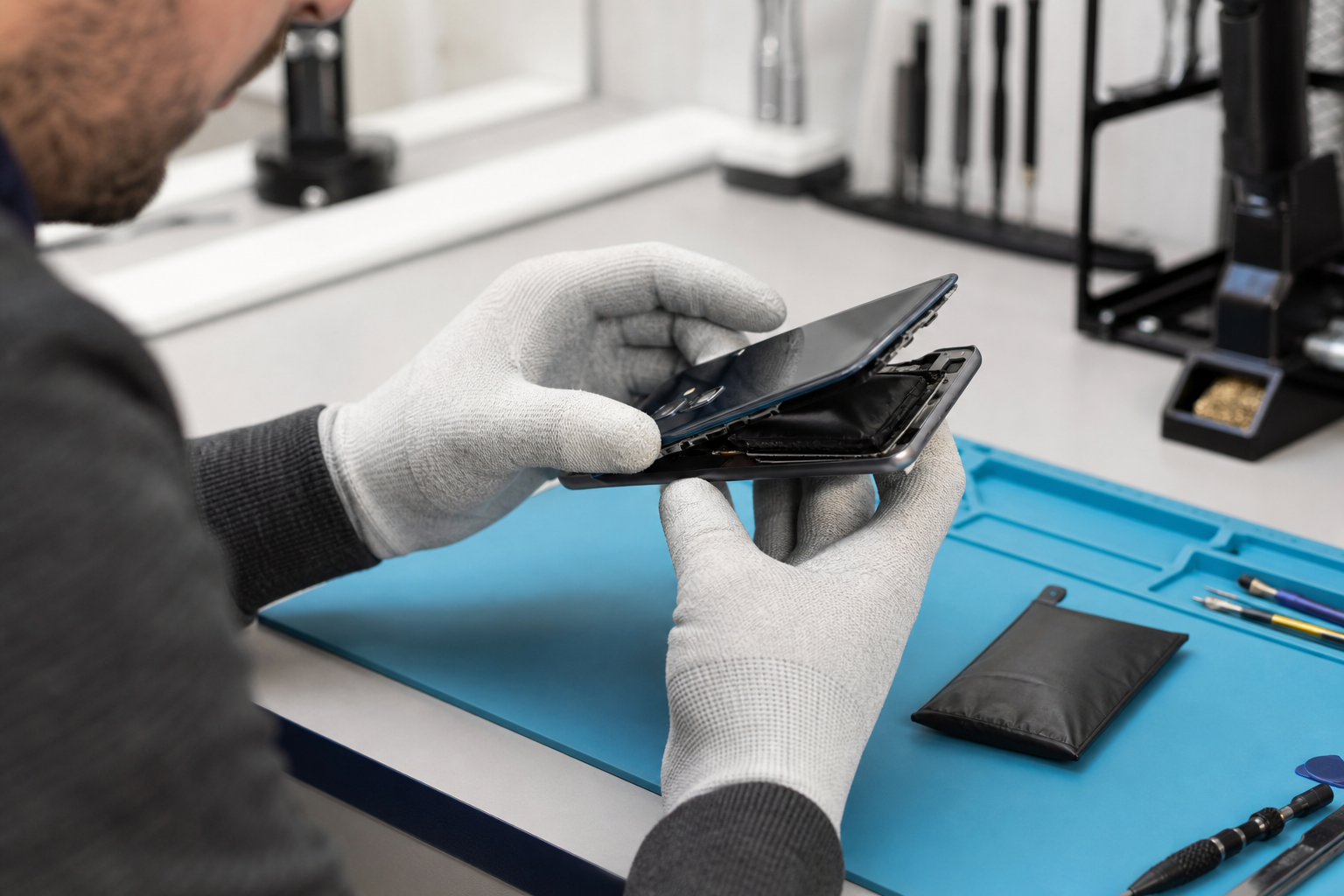
Start with a simple physical and functional inspection. Look for:
- Cracks or chips on the screen
- A loose charging port
- Buttons that do not respond properly
- Cameras or microphones that are not working
- A case that is broken or no longer fits securely
- Overheating during ordinary use
- A battery that drains unusually quickly
- Apps that crash or a device that runs very slowly
Test the phone, tablet or laptop over a few days rather than relying on a quick test at home. For example, check whether it can complete a video call, open school websites, connect to Wi-Fi and run the apps your child uses regularly.
A small fault can become more disruptive once the device is being carried to school every day. If the screen is damaged, the charging connection is unreliable or the battery is no longer lasting through normal use, professional advice may be appropriate before term starts.
2. Back up important photos, files and schoolwork
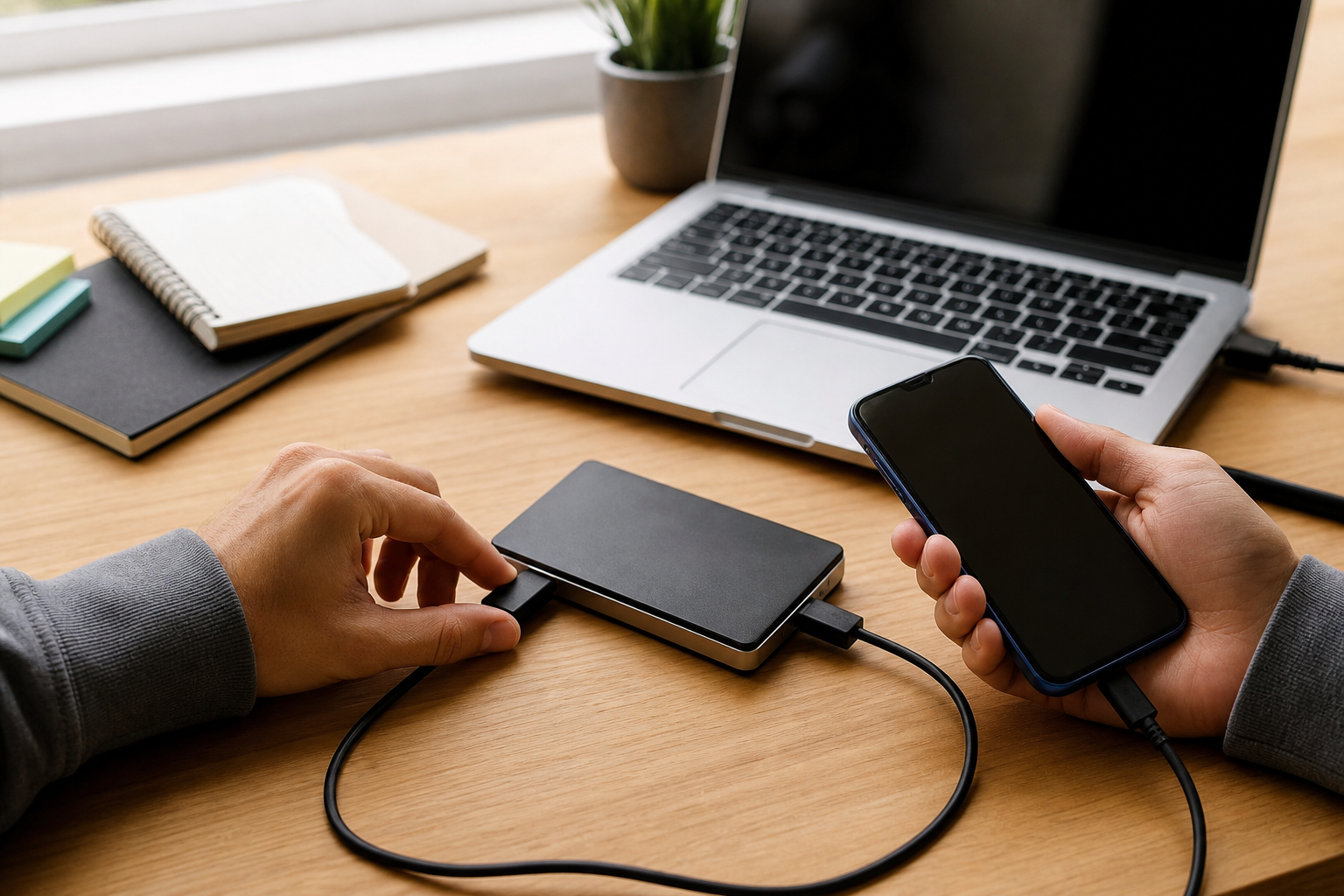
A backup gives you another copy of important information if the device is lost, damaged or needs replacing. Before making changes or sending a device for repair, check that the backup has completed successfully.
For an iPhone or iPad, Apple recommends using iCloud Backup or backing up through a Mac or PC. To make an iCloud backup, connect the device to Wi-Fi, open Settings, tap the account name, choose iCloud, then iCloud Backup and select Back Up Now. Keep the device connected until the process finishes. (support.apple.com)
On Android, open Settings, choose Google, then All services and Backup. Android backups can include items such as contacts, SMS messages, call history, device settings and some app data, although not every app restores all information. (support.google.com)
For a Windows laptop, review important documents in folders such as Documents, Desktop and Downloads. Windows Backup can help save files, settings and other information when signed in with a personal Microsoft account, while OneDrive can be used for files that need to be available across devices. (support.microsoft.com)
Do not assume that a backup includes everything. Check separately for:
- Locally stored photos and videos
- Downloaded PDFs and worksheets
- Minecraft or other game saves
- WhatsApp or other messaging app data
- Browser bookmarks and saved passwords
- Files stored on a memory card
- School accounts and two-factor authentication access
3. Install system and app updates
Updates can include security fixes, compatibility improvements and bug fixes. Install them before school begins rather than waiting for an update to appear during a lesson or while travelling.
Before updating, make sure the device is charged or connected to power and has enough free storage. Keep the device connected to a reliable Wi-Fi network, and allow extra time for the installation and restart.
On an iPhone, check Settings > General > Software Update. Apple advises backing up the device before updating. (support.apple.com)
On a Windows laptop, open Settings > Windows Update and check for available updates. Microsoft recommends keeping a laptop connected to power when updates are being installed so it has enough charge to complete the process. (support.microsoft.com)
Update apps from the relevant app store, but avoid installing unfamiliar “cleaner”, “booster” or security apps simply because they promise to speed up the device. If a laptop remains slow after updates and removing unused files, it may need a proper diagnostic or servicing check.
4. Test the battery and charger
Battery problems are especially inconvenient during a school day. Check how long the device lasts during normal use, whether it charges consistently and whether the charger or cable becomes unusually hot.
On an iPhone, battery information is available under Settings > Battery > Battery Health or Battery Health & Charging, depending on the model. A service message or very short battery life may indicate that the battery needs attention. (support.apple.com)
Windows laptops include battery information under Settings > System > Power & battery. Windows can also generate a battery report using the `powercfg /batteryreport` command, which provides information about estimated capacity and recent usage. (support.microsoft.com)
For everyday battery care:
- Avoid charging or using the device in excessive heat
- Replace frayed or damaged charging cables
- Use a suitable charger for the device
- Do not put pressure on a swollen battery
- Keep a charged power bank only if it is suitable for the phone and permitted by the school
If a battery is visibly swollen, stop using the device immediately. Do not press on it, puncture it or attempt to remove it yourself. Arrange professional advice instead.
5. Protect the screen and body
A sturdy case and screen protector can reduce the chance of everyday damage from bags, desks and accidental drops. Check that the case leaves the camera, speakers, buttons and charging port accessible.
A screen protector is not a substitute for careful handling, but it can help protect against minor scratches. Clean the screen before fitting one and avoid trapping dust or debris underneath it.
For a laptop, use a properly sized sleeve or compartment rather than placing it loose in a school bag with keys, drink bottles or heavy books. Do not close the lid with pens or other objects resting on the keyboard.
6. Review storage and school essentials
A nearly full device may become difficult to update and can feel slower during everyday use. Remove old downloads, duplicate videos and unused apps, but check with your child before deleting anything that may be needed for school.
Create a clear folder structure on the laptop, such as:
- School year
- Subject
- Homework
- Coursework
- Reference files
Make sure your child knows their school email address, passwords and any required authentication method. Do not write passwords on a label attached to the device. Instead, use a secure password manager or another method agreed with your family.
Check that the laptop has the software needed for schoolwork, such as a web browser, document editor and PDF reader. If the school provides specific apps or login instructions, follow the school’s guidance rather than installing alternatives at random.
7. When should you arrange a repair or setup appointment?
Consider getting help before term starts if:
- The device only charges when the cable is held at a certain angle
- The battery no longer lasts through ordinary use
- The screen has cracks, black spots or touch problems
- The laptop shuts down unexpectedly
- The device has suffered liquid or impact damage
- Data needs transferring to a replacement device
- You are unsure whether a backup has completed
- The device is too slow for school applications
Fonebook provides local phone and device repairs in Horden, with current repair pricing, online booking and repair tracking. You can visit Fonebook Horden at Unit 5 Cotsford Lane, Horden, SR8 4JJ. For available services and current pricing, check the live repair information before booking.
You can also visit the Fonebook Horden location page or return to the Fonebook home page to review the available options. Warranty on fitted parts — terms apply.
A sensible pre-term check could include device health checks, data transfer, screen protection, charger testing and laptop servicing where needed. Booking early gives you time to identify problems and make sure your child has a dependable device for the first day back.
Final back-to-school device checklist
Before the school term begins, confirm that:
- Important files, photos and contacts are backed up
- System software and apps are updated
- The battery lasts for a reasonable period
- The charger and cable work safely
- The screen and charging port have been checked
- A case or laptop sleeve is fitted
- Unused files and apps have been reviewed
- School accounts and passwords are accessible
- The device connects to Wi-Fi and runs required apps
- Any faults have been assessed before the device is needed
A little preparation now can prevent avoidable disruption later. If your child’s phone, tablet or laptop needs checking or repairing, Fonebook Horden can help you understand the next practical step.
Frequently asked questions
Can Fonebook help set up a child’s new phone or laptop?
Fonebook provides local phone and device repairs in Horden, including support that may be relevant when preparing or transferring data between devices. Check the live repair information for current services and pricing before booking.
Should I back up a device before bringing it for repair?
Yes. Back up important photos, contacts, messages and school files first where possible. Some repairs may require device access or a reset, so keep a separate copy of anything important.
What should I do if a phone or laptop battery is swollen?
Stop using and charging the device. Do not press, puncture or attempt to remove the battery. Keep it away from heat and arrange professional advice as soon as possible.
How can I tell whether a laptop is ready for school?
Check that it starts reliably, connects to Wi-Fi, has enough free storage, runs required school software, holds charge and has a working keyboard, trackpad, camera and microphone.
Does Fonebook publish repair prices for back-to-school services?
Fonebook’s current repair pricing is available through its live repair information. Prices can vary by device and service, so check the relevant page or contact Fonebook before booking.
Sources
- Apple Support: How to back up your iPhone, iPad and iPod touch
- Apple Support: How to back up your iPhone or iPad with iCloud
- Google Android Help: Back up or restore data on your Android device
- Microsoft Support: Back up and restore with Windows Backup
- Microsoft Support: Caring for your battery in Windows
- Microsoft Support: Windows Update FAQ