
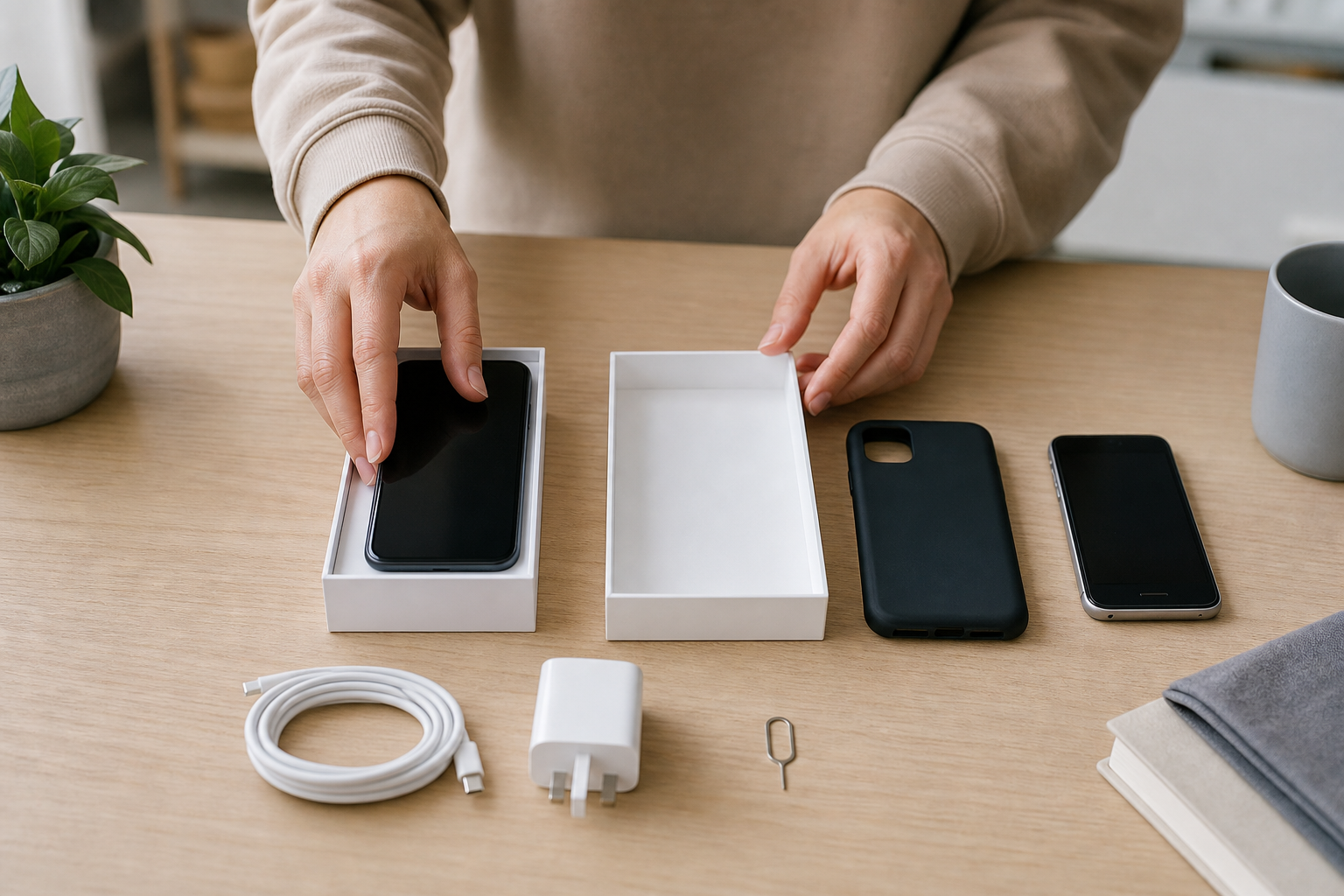
Whether you are planning to upgrade after Apple’s September announcements or simply replacing an older handset, a little preparation can make buying a new iPhone much less stressful.
Before you hand over your current phone or switch it off for the last time, make sure your photos, contacts, messages and accounts are protected. It is also worth checking your trade-in options, choosing suitable accessories and deciding whether your existing phone needs a repair before you sell or recycle it.
Here is a practical checklist for UK customers.
1. Check whether you really need to replace your iPhone
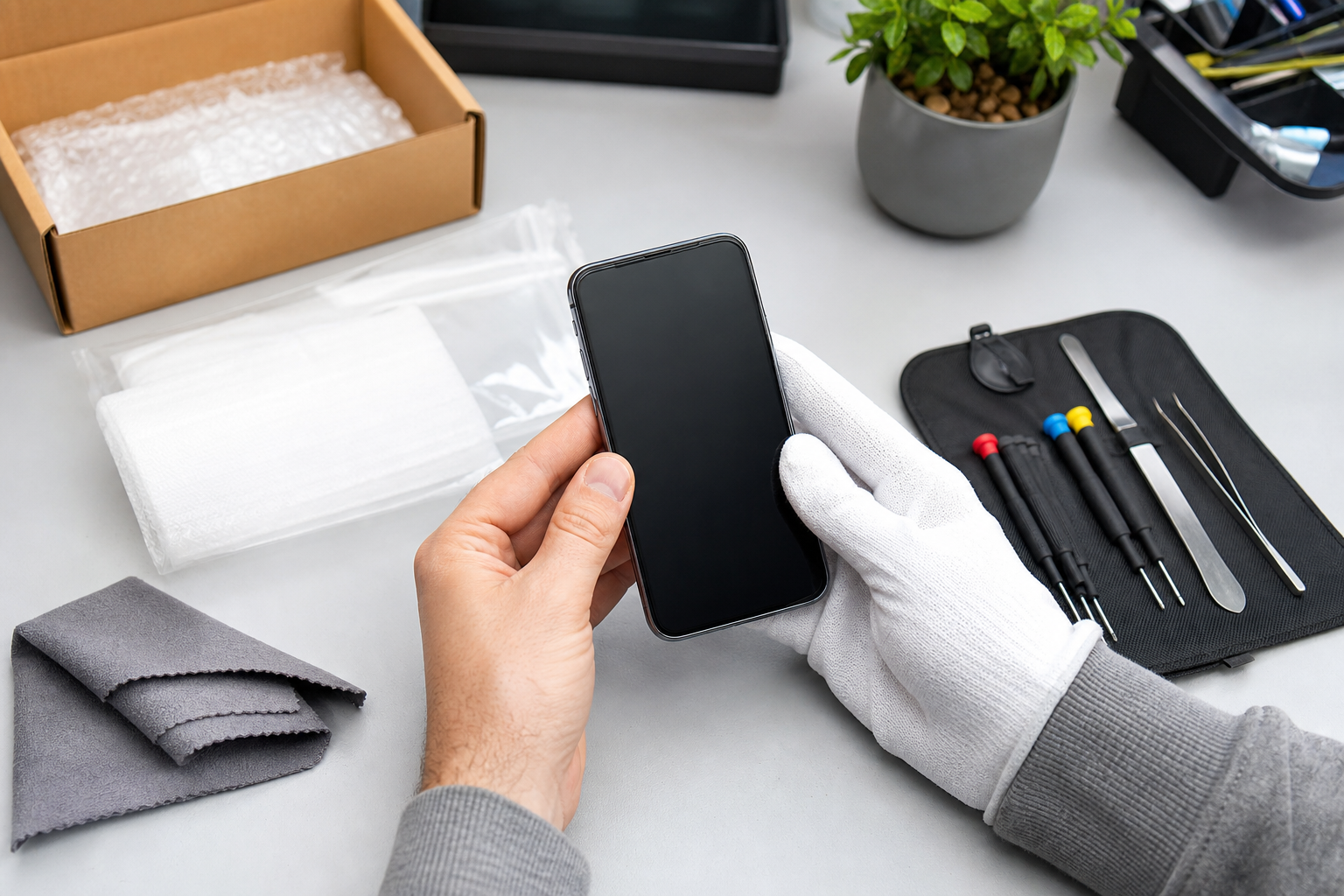
A new model can be appealing, but first consider what is actually causing problems with your current phone.
- Is the battery draining unusually quickly?
- Is the screen cracked or difficult to use?
- Is the charging port loose or unreliable?
- Is the phone running out of storage?
- Are software updates no longer available for your model?
A battery, screen or charging issue may be repairable, which could be more suitable if the phone still meets your needs. If you are unsure, arrange an assessment before committing to an upgrade. Fonebook provides local phone and device repairs in Horden, with current repair pricing and online booking available through the Fonebook Horden page.
2. Make a proper backup before doing anything else
Do not rely only on seeing your photos in the Photos app. Create a recent backup before you erase, trade in, post or give away your iPhone.
Apple supports backing up an iPhone using iCloud or a computer. For an iCloud backup:
1. Open Settings.
2. Tap your name, then iCloud.
3. Choose iCloud Backup.
4. Turn on Back Up This iPhone if necessary.
5. Tap Back Up Now.
Wait until the backup has completed and check the date and time of the latest backup. Apple says automatic iCloud backups usually happen when the iPhone is connected to power, locked and connected to Wi-Fi.
You can also create a computer backup using a Mac or Windows PC. An encrypted local backup can be useful because it can include additional information such as Health and Activity data. Keep the encryption password somewhere safe: if you forget it, the backup may not be usable.
For extra peace of mind, consider having both an iCloud backup and a computer backup. A backup is not a replacement for checking that important photos, files and messages are available, but it gives you another way to restore your information if something goes wrong.
3. Check your accounts and authentication methods
Before transferring to a new phone, make sure you can sign in to the accounts you use most often.
Check that you know your:
- Apple Account password
- Email passwords
- Banking app login details
- Social media passwords
- Password manager details
- Two-factor authentication recovery options
Authenticator apps and security keys need particular care. Some accounts may require you to approve the new device from the old one, while others may need a backup code or a fresh setup. Do not erase your old iPhone until you have successfully signed in to essential services on the replacement.
Also check your mobile service. If you use a physical SIM, you may need to move it to the new phone. If you use an eSIM, follow your network provider’s transfer instructions and make sure calls and mobile data work before disposing of the old device.
4. Prepare for the data transfer
Apple’s Quick Start feature can transfer information from an existing iPhone to a new one. Keep both phones nearby, connected to Wi-Fi, with Bluetooth switched on and preferably connected to power.
During setup, you may be offered a choice between downloading your information from iCloud or transferring directly from your old iPhone. A direct transfer may take longer, particularly if you have a large photo library or many apps, so allow plenty of time.
Before starting:
- Charge both devices.
- Update the old iPhone if an update is available.
- Have your Apple Account password ready.
- Keep your Wi-Fi password available.
- Do not interrupt the transfer unnecessarily.
- Keep the old phone until you have checked the new one.
Check your photos, contacts, messages, notes, calendar, WhatsApp or other messaging apps, email, banking apps and saved passwords. Some apps may require you to sign in again for security reasons.
If you are not confident doing the transfer yourself, a local device-preparation or data-transfer service can help you move through the process carefully. Fonebook is based at Unit 5 Cotsford Lane, Horden, SR8 4JJ.
5. Decide whether to repair before trading in
A cracked screen, poor battery or damaged camera can affect a trade-in assessment. Before spending money on a repair, compare the likely repair cost with the value you expect to receive and consider how long you plan to keep the phone.
Repairing the device may be worthwhile if:
- The fault is minor and the phone is otherwise in good condition.
- You want to pass it to a family member.
- The phone has useful storage capacity.
- You are selling it privately and want to describe it accurately.
However, do not assume every repair will increase the final offer by more than the repair cost. Check the trade-in provider’s condition rules first and be honest about damage, battery condition and functionality.
If you choose a repair, ask what part warranty applies. Fonebook’s supplied warranty wording is: Warranty on fitted parts — terms apply.
6. Prepare your trade-in safely
Trade-in values depend on the model, storage, condition and the provider’s assessment. Offers can change, so check the live trade-in terms rather than relying on an old estimate.
Before handing over the phone:
- Back up your information.
- Transfer your data to the new device.
- Remove cards from Apple Wallet.
- Sign out of important accounts where appropriate.
- Turn off Find My iPhone.
- Erase all content and settings only after checking the new phone.
- Remove the SIM card if you use one.
- Keep proof of postage or handover.
Apple’s UK trade-in guidance says the device may be inspected to confirm that its condition matches the description provided. If you are using another provider, read its process carefully, including how long you have to send the phone and what happens if the assessed value changes.
Never send an iPhone containing personal data simply because you have started a trade-in estimate. Complete the transfer and erase process first.
7. Choose a case and screen protector early
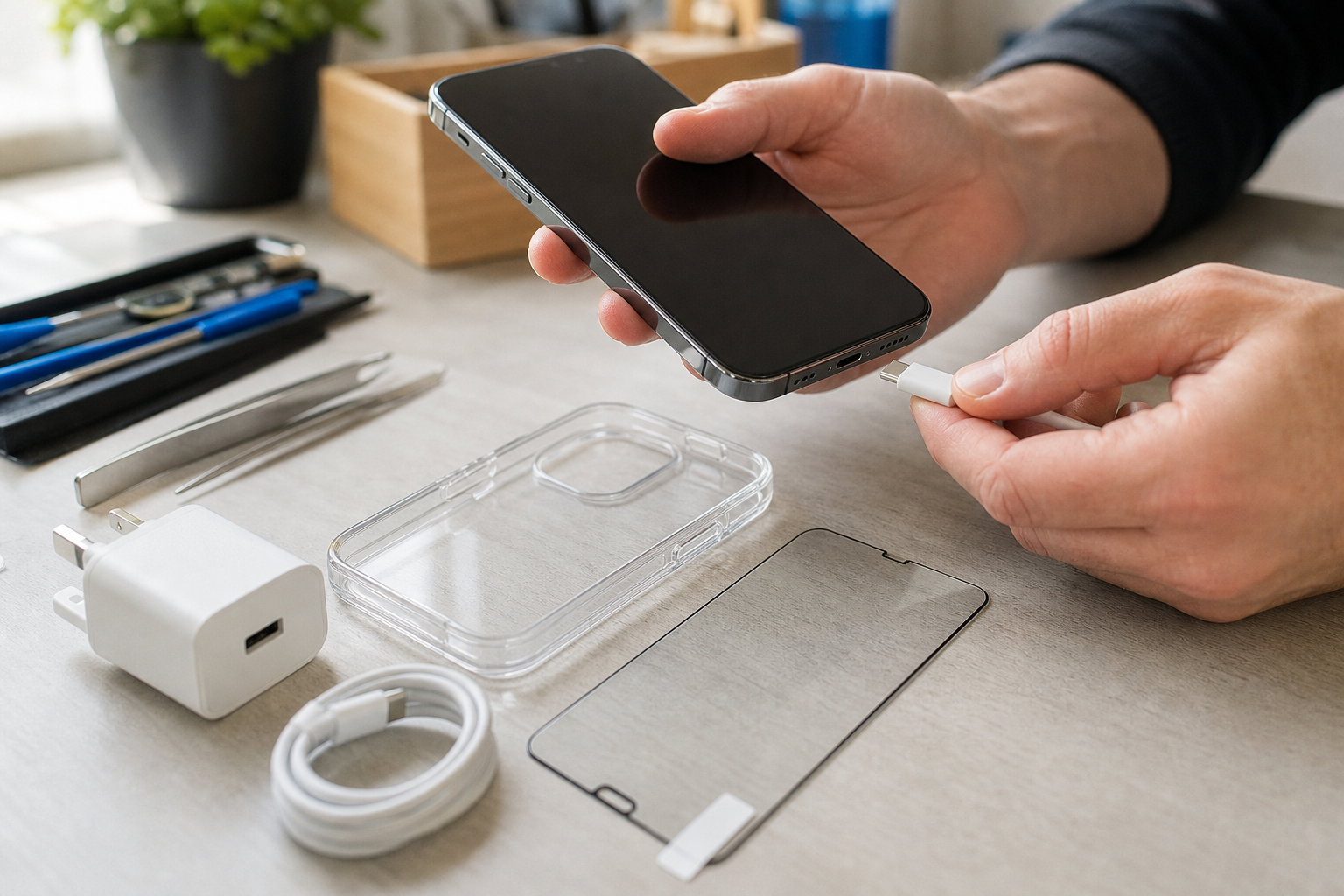
A new iPhone is easiest to protect before it is dropped. A case with raised edges around the screen and camera can help reduce everyday scuffs and impact damage. Choose a case that matches the exact model, as camera layouts, button positions and dimensions can vary.
A screen protector can help with scratches, but it is not a guarantee against cracks. Check that it is compatible with Face ID, touch sensitivity and any case you plan to use. Applying it in a dust-free environment usually gives the best result.
If your previous phone suffered from cracked glass, consider using a stronger case and a screen protector from the start rather than waiting for the first accident.
8. Check the charger and cable before buying extras
Many modern iPhones use USB-C, while older models may use Lightning. Check the connector on the phone you are buying before ordering a cable or charger.
Apple says iPhone 15 and later models use USB-C, and compatible USB-C cables and power adapters can be used for charging and data transfer. A suitable USB-C Power Delivery adapter may support faster charging, but the cable must also be suitable for the task.
Before buying accessories, check:
- The phone’s connector type.
- Whether the charger supports USB Power Delivery if required.
- The cable length you need.
- Whether you want charging only or charging and data transfer.
- Whether your existing adapter is safe and undamaged.
Do not use a cable with exposed wires, severe fraying or damaged connectors. Stop using a power adapter if it has been dropped, exposed to liquid or shows signs of damage.
Final pre-upgrade checklist
Before buying or accepting a new iPhone, make sure you have:
- Created a recent iCloud or computer backup.
- Checked your Apple Account and authentication details.
- Confirmed how your SIM or eSIM will transfer.
- Planned the data transfer and allowed enough time.
- Checked trade-in condition rules and deadlines.
- Removed personal data only after confirming the new phone works.
- Chosen a compatible case and screen protector.
- Checked whether you need a USB-C or Lightning cable.
- Considered repairing your current phone before trading it in.
For more practical phone advice, visit the Fonebook blog or the Fonebook home page. If you need help preparing a device or checking a repair option locally, you can find Fonebook at Unit 5 Cotsford Lane, Horden, SR8 4JJ.
Frequently asked questions
Should I repair my old iPhone before trading it in?
It depends on the repair cost, the phone’s condition and the trade-in provider’s rules. Compare the expected trade-in value before and after repair rather than assuming a repair will always pay for itself.
What should I do before selling or trading in my iPhone?
Back up your data, transfer information to the replacement device, remove cards from Apple Wallet, turn off Find My iPhone, sign out where appropriate and erase all content and settings. Keep proof of postage or handover.
Can I transfer everything directly from my old iPhone?
Apple’s Quick Start feature can transfer information between compatible iPhones. Keep both devices nearby, connected to Wi-Fi and power, and wait for the transfer to finish before erasing the old phone.
Do I need a new charger for a new iPhone?
Not always. Check the connector type and make sure your existing cable and adapter are compatible, safe and undamaged. Many newer iPhones use USB-C, while older models may use Lightning.
Is a screen protector enough to prevent a cracked iPhone screen?
No. A screen protector can help reduce scratches and minor surface damage, but it cannot guarantee that the screen will not crack. A suitable protective case is also recommended.