
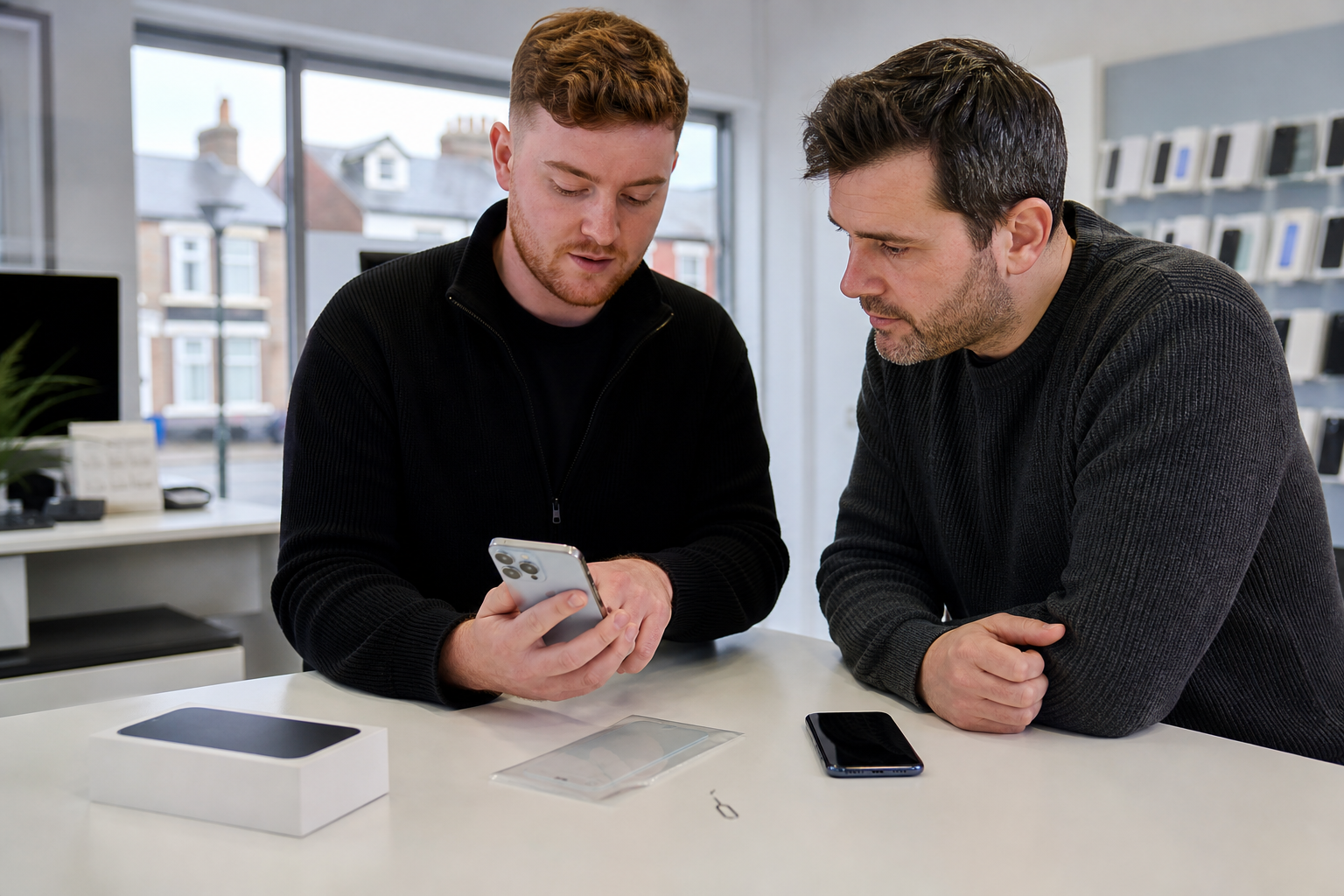
If you have bought an iPhone 18 Pro or iPhone 18 Pro Max in or near Horden, do not put the box straight in your bag and leave. Check the exact model, protect the display, begin setup only if you have enough time, test essential functions and keep your old phone until your data and mobile service are confirmed.
The iPhone 18 Pro and Pro Max became available in the UK on Friday 18 September 2026. This seven-step sequence is designed for launch-week buyers who want to avoid an incompatible case, an incomplete transfer or an old phone being erased too soon.
1. Confirm whether it is the Pro or Pro Max
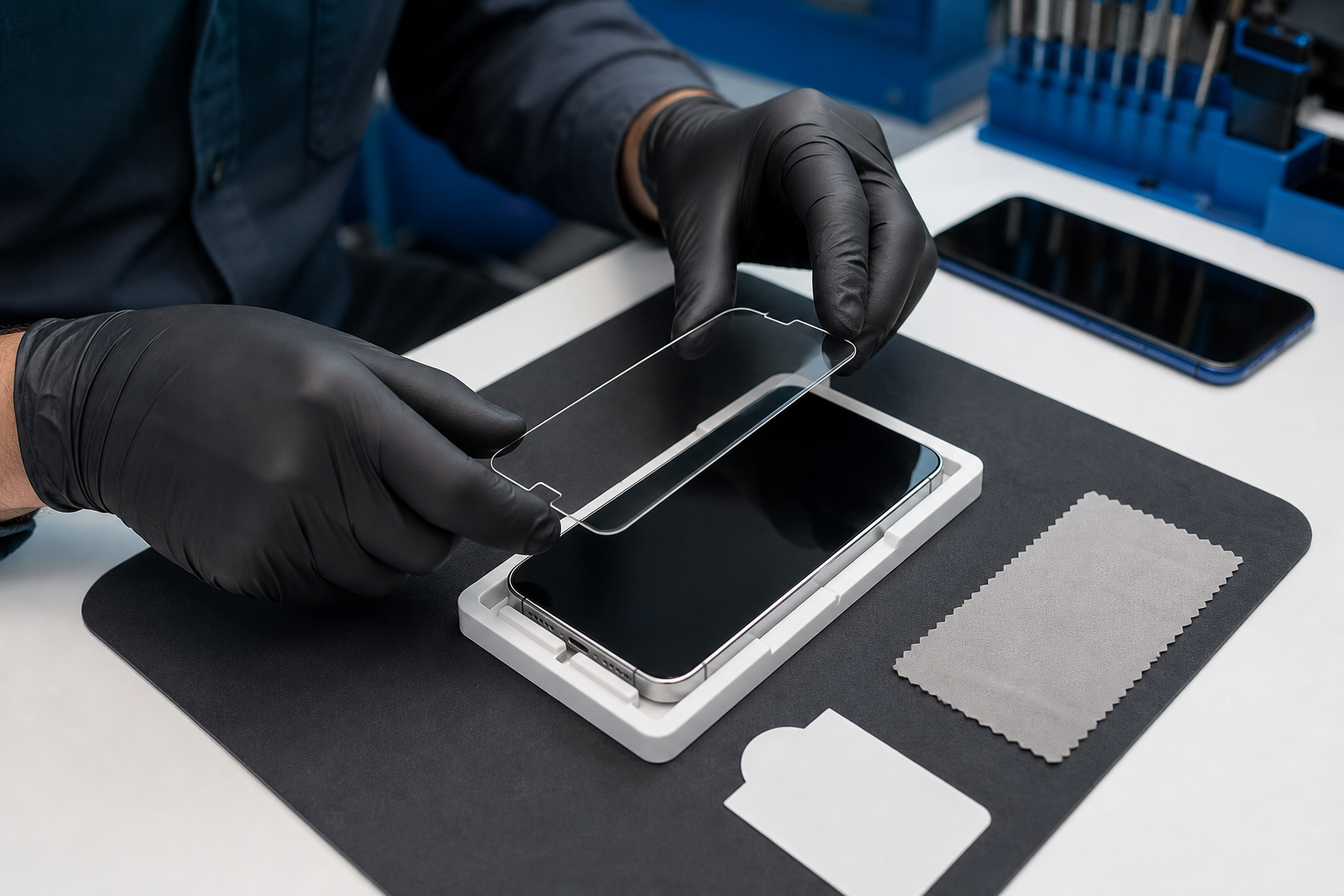
Before buying or fitting a case or screen protector, check the model name on the box, receipt and phone. The iPhone 18 Pro and iPhone 18 Pro Max are not the same physical size:
- iPhone 18 Pro: 150.0mm tall and 71.9mm wide, with a 6.3-inch display.
- iPhone 18 Pro Max: 163.4mm tall and 78.0mm wide, with a 6.9-inch display.
Both have Ceramic Shield 2 on the front, but that does not make their accessories interchangeable. A case or protector should list your exact model, unless its manufacturer specifically confirms compatibility with both.
This is particularly important when searching for an iPhone 18 Pro screen protector and setup in Horden. “iPhone 18” alone is not precise enough for an accessory purchase. The launch evidence confirms the Pro and Pro Max models; it does not establish a standard non-Pro iPhone 18 model in the same material.
2. Choose protection by fit, not just by material
A correctly sized screen protector is useful even though the phone has built-in front-glass protection. The display also has an oleophobic coating, anti-reflective coating, Dynamic Island and ProMotion up to 120Hz, so an accessory should be fitted carefully and should not obstruct normal use.
Look for these practical checks:
- Exact compatibility with iPhone 18 Pro or iPhone 18 Pro Max.
- Clearance for the case you plan to use.
- A fitting or alignment frame to help position the protector accurately.
- Cleaning materials and instructions for removing dust before application.
- Anti-fingerprint or anti-reflective features if those matter to you.
- Clear information about thickness and edge coverage.
For example, Belkin documentation lists a 0.33mm tempered-glass protector with an alignment frame for compatible Pro models. Its separate Titan SmartShield documentation lists compatibility with both Pro and Pro Max and says it works with first-party and Belkin cases. That does not mean every protector, case or shop accessory has the same compatibility. Availability can also change, so do not assume a particular product is in stock locally.
3. Fit the protector before the phone meets your pocket or car
If you are having protection fitted at the counter, it makes sense to do it before the phone goes into a pocket, bag, cup holder or car mount. Dust and small particles picked up during the first few minutes can create bubbles or prevent a clean edge seal.
Before application, check that the display is clean and that the protector packaging names the correct model. After fitting, inspect the edges under good light. Look for trapped dust, lifting corners, large bubbles, misalignment around the Dynamic Island and any area where touch appears obstructed.
Do not treat Ceramic Shield or a screen protector as a guarantee against every crack or scratch. A case may add useful protection around the frame, but its fit should also be checked around the camera area, buttons, speakers and charging port. If a local provider is fitting an accessory, ask them to confirm that the protector and case are intended to work together.
4. Inspect and record the new phone before leaving
Once the phone is opened or activated, take a few minutes to check its physical condition and retain the paperwork. Confirm that the colour, storage capacity and model match what you ordered. Examine the display, frame, camera glass and rear panel for marks or damage, and make sure the box contents match the purchase.
Take or retain a copy of the receipt and note the phone’s serial number. Apple recommends checking coverage using the serial number; the original receipt may be needed if the estimated purchase date or warranty expiry is incorrect. This is separate from any terms that may apply to accessories or repairs carried out by another business.
If Fonebook later fits a part or carries out a repair, its supplied wording is “Warranty on fitted parts — terms apply.” That wording should not be confused with Apple’s product warranty or used as a promise about the new iPhone itself.
5. Start Quick Start only when both phones can stay available
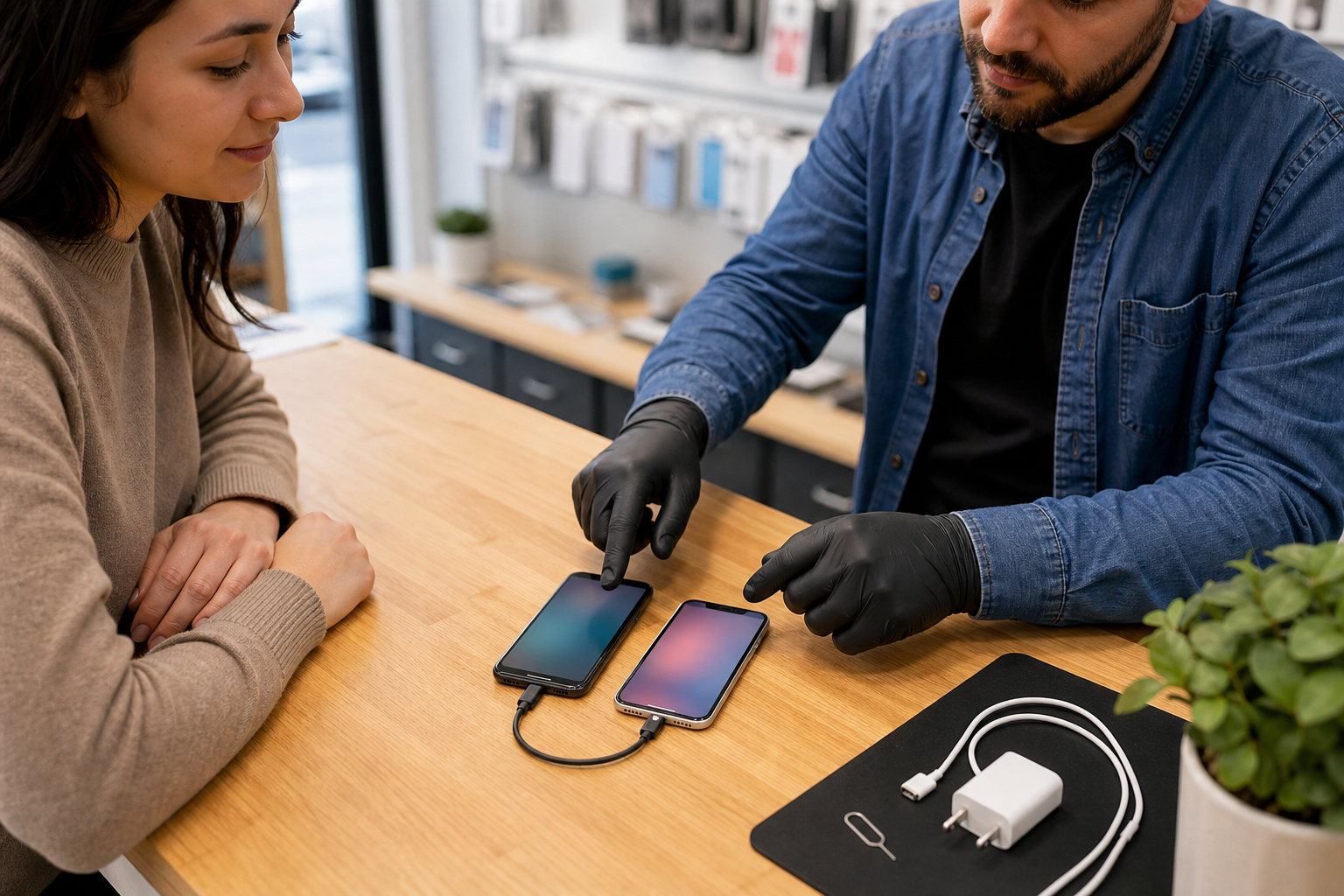
Apple Quick Start can transfer information from your old iPhone to the new one, but prepare both devices first. Keep them close together, connect them to Wi-Fi and turn on Bluetooth. Follow the on-screen instructions and choose either a direct transfer or a download from iCloud.
A direct transfer requires both iPhones to remain available until the migration finishes. With iCloud, apps and data can continue downloading in the background, but you still need to check that important information has arrived and that you can sign in.
Do not begin a transfer at the counter if you need to leave before there is enough power or time. More importantly, do not erase the old phone simply because the new one has reached the Home Screen. Check your photos, messages, contacts, notes, passwords and authentication apps. Banking apps and other security tools may require an additional sign-in or verification step.
Keep the old iPhone charged and nearby until you have confirmed the information you actually need—not just that the setup animation has finished.
6. Activate the number, then test mobile service
A phone can appear fully set up while its mobile service is still incomplete. Ask your network provider how your number should move to the new device.
Some supported providers allow eSIM Quick Transfer between nearby iPhones. Others may require a QR code, a carrier app or help from the network. The available route depends on the provider, and moving from Android can involve different requirements.
Before leaving, test all three essentials:
- Make a normal phone call.
- Send and receive a text message.
- Turn off Wi-Fi and confirm that mobile data works.
If you use a physical SIM, check that it has been moved correctly. If you use an eSIM, confirm that the correct mobile plan appears in the new phone’s settings. If activation fails, contact the network provider rather than assuming it will resolve itself after the old phone is erased.
7. Test key functions and delay trade-in handover
Do a short practical test before you leave the shop or before sending the old phone away. Check the following:
- Touch response across the whole display.
- Face ID setup and unlocking.
- Front and rear cameras, including focus and flash.
- Speakers and microphone.
- Charging through the intended cable or charger.
- Calls, texts and mobile data.
- Access to essential apps and two-factor authentication.
Only after these checks should you prepare the old device for trade-in or handover. Apple’s trade-in guidance says to back it up and erase it, remove or transfer its eSIM, remove a physical SIM, unpair an Apple Watch where relevant, check for unfinished repairs and avoid sending accessories that have not been requested.
The safe order is therefore: transfer, sign in, test, check mobile service, confirm your important data, then erase. If anything is missing, keep the old phone as your fallback and resolve the problem first.
Your Horden next step
For local information about Fonebook Horden, including current repair pricing, online booking and repair tracking, visit the Fonebook Horden location page. The address is Unit 5 Cotsford Lane, Horden, SR8 4JJ, United Kingdom. You can use the location page to ask about any available local help with a protector, setup-related issue or future repair without relying on an unverified stock or price promise.
A few minutes spent checking the exact Pro model, fitting protection properly and keeping the old phone available can prevent much bigger problems later.
Frequently asked questions
Will an iPhone 18 Pro screen protector fit the iPhone 18 Pro Max?
Not automatically. The iPhone 18 Pro and Pro Max have different dimensions, so choose a protector that explicitly names your exact model or confirms compatibility with both.
Can I transfer my old iPhone in the shop using Quick Start?
Yes, if both phones are nearby, connected as required, and you have enough time and power. Keep the old iPhone available until the transfer, sign-ins and important data have been checked.
How do I move my mobile number to an iPhone 18 Pro?
Depending on your network, you may use eSIM Quick Transfer, a QR code, a carrier app or provider-assisted activation. Test a call, text and mobile data before leaving.
When can I erase my old iPhone for trade-in?
Erase it only after your photos, messages, contacts, authentication apps and other essential data are confirmed on the new phone. Remove or transfer the eSIM and physical SIM as appropriate.
Where is Fonebook Horden?
Fonebook Horden is at Unit 5 Cotsford Lane, Horden, SR8 4JJ, United Kingdom. Visit the Horden location page for current local repair information, online booking and repair tracking.