
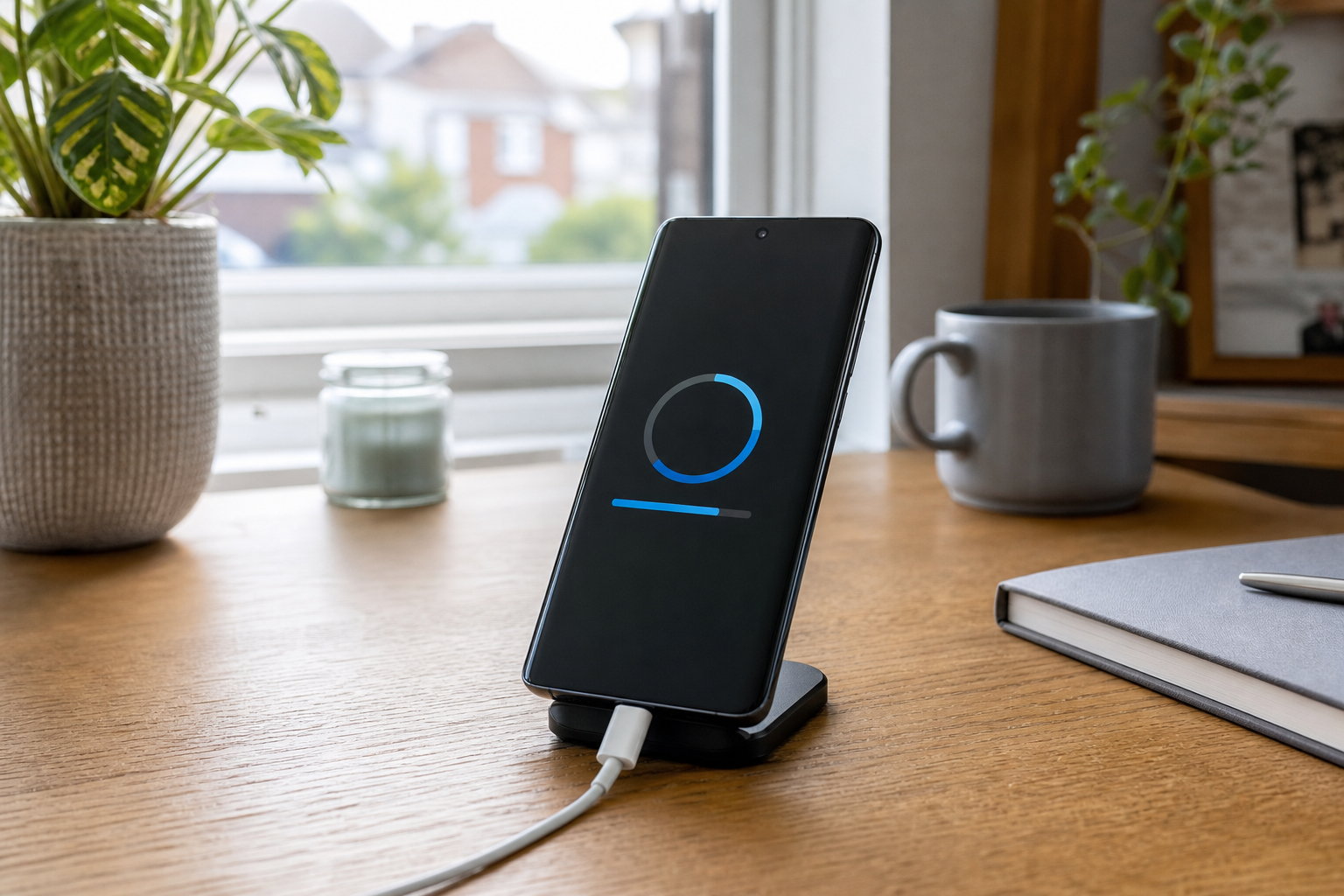
The iOS 27 update is now a public release in the UK, released on 14 September 2026. It supports iPhone 11 and newer, along with the second-generation iPhone SE and later. However, installing iOS 27 does not mean that your iPhone will receive every Apple Intelligence or Siri AI feature.
That distinction is the most important thing to check before updating. Your iPhone may be compatible with iOS 27 while lacking the hardware needed for the newest Siri capabilities, or while certain features remain limited by language, region or beta availability.
iOS 27 compatibility: which iPhones can install it?
Apple’s published compatibility list includes:
- iPhone 11, 12, 13, 14, 15, 16 and 17 families
- Newer iPhone 18 models
- iPhone Air and iPhone Duo models listed by Apple
- iPhone SE (2nd generation and later)
The practical rule is iPhone 11 or newer, or iPhone SE (2nd generation or newer). Check the exact model in Settings > General > About rather than relying on appearance or purchase date. Storage capacity, battery condition and the phone’s current software can affect whether the update completes successfully, even when the model itself is supported.
Apple identifies the public iOS 27.0 release as build 24A437. This is a released version rather than a preview or beta, although later maintenance updates may follow.
Three different levels of eligibility
The iOS 27 update has been widely discussed alongside a major Siri upgrade. That can make the compatibility picture sound simpler than it is. There are three separate questions to ask:
| Check | What it means |
|---|---|
| Can the iPhone install iOS 27? | iPhone 11 and later, plus iPhone SE (2nd generation and later), are on Apple’s supported list. |
| Is it Apple Intelligence-enabled? | The phone needs newer hardware. Compatible older iPhones can run iOS 27 without Apple Intelligence. |
| Will a particular Siri AI feature work in the UK? | Availability can depend on the individual feature, device, language, region and whether it is still in beta. |
Apple’s UK support information lists Siri AI support for iPhone 15 Pro, iPhone 15 Pro Max and all iPhone 16 models and later. That means an iPhone 11, standard iPhone 15 or another compatible non-Pro model may install iOS 27 but will not gain the same AI features.
Siri AI is also rolling out in beta in English, including English (United Kingdom). That is useful for UK owners, but it does not guarantee access to every feature. Apple’s feature availability information marks some capabilities, including Write with Siri, Visual Intelligence and Siri Mode in Camera, as unavailable in the European Union. The UK is listed separately from the EU, but individual features should still be checked rather than assumed to be available.
If Siri AI is the main reason you want to update, first confirm your exact iPhone model, set Siri to a supported language if appropriate, and check Apple’s current availability information for the specific feature you want.
What to check before installing iOS 27
A major software update is safer when the phone can recover if the installation fails. Complete these checks before selecting Settings > General > Software Update.
1. Make a current backup
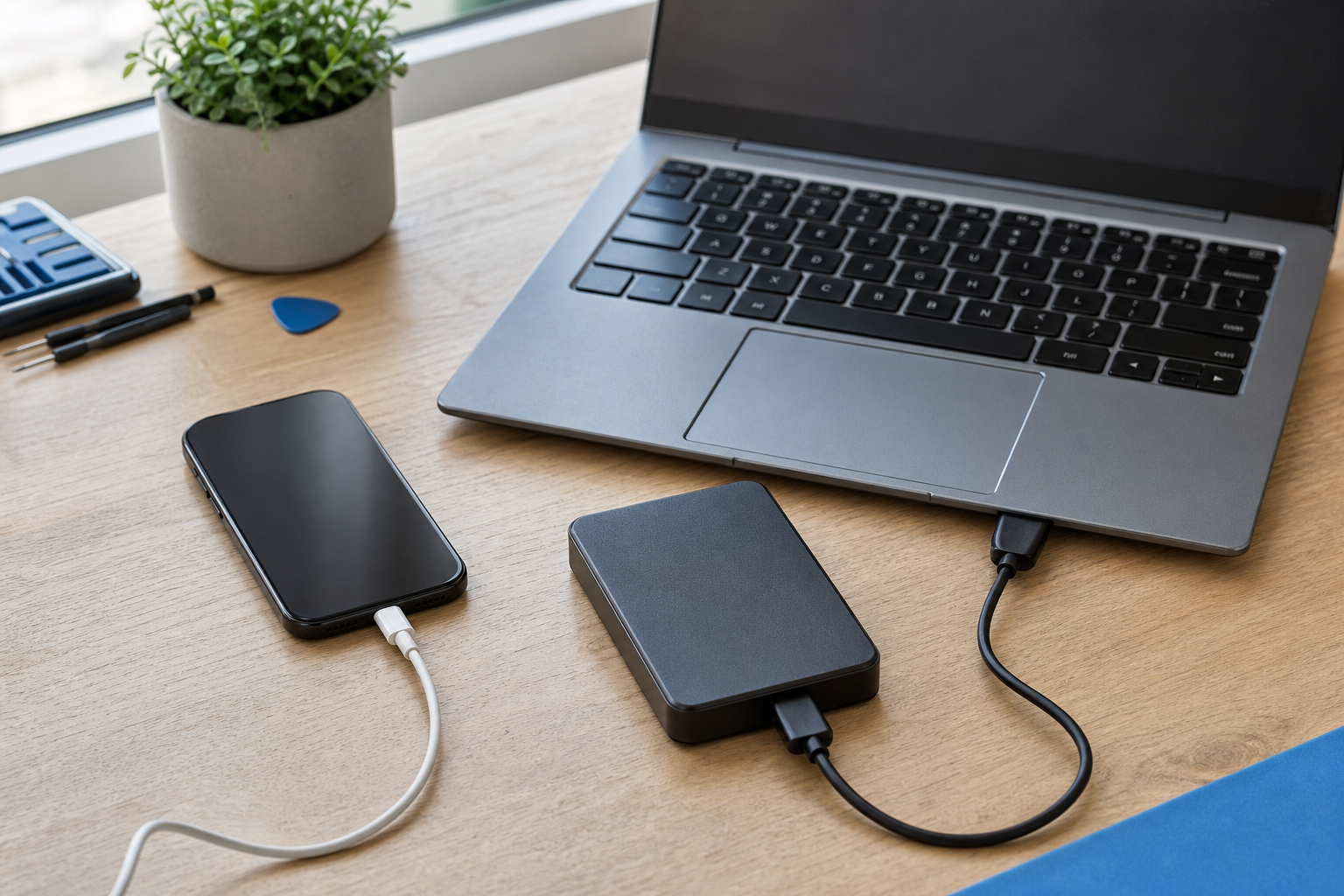
Back up the iPhone to iCloud or to a computer before updating. Check that the backup has completed recently rather than assuming that it has. A current backup protects personal data if the installation is interrupted or the phone later needs to be restored.
Health data may have separate backup considerations, so check that your important information is included in the backup method you use. Also make sure you know the Apple Account password needed to restore apps and services afterwards.
2. Check available storage
The update needs working space to download, unpack and install. Go to Settings > General > iPhone Storage and review what is using capacity. Large videos, downloaded films, duplicate photos and unused apps are common places to reclaim space.
Do not remove valuable data without checking that it is backed up first. If storage is tight, clearing space before beginning is usually more useful than repeatedly retrying a failed download.
3. Use reliable Wi-Fi and power
Install over a stable Wi-Fi connection and connect the iPhone to a power source. Avoid starting the update during travel or when you may need the phone immediately. Network interruptions, Apple server demand and an incomplete download can all prevent an update from finishing.
There is no need to rely on an unsupported fixed battery-percentage rule. The important checks are a reliable power source, a stable connection and enough time for the process to complete.
4. Check apps and important settings
Update essential apps where updates are available, particularly banking, authentication, travel and work apps. Make sure you can access your Apple Account and any two-factor authentication method you use.
If you depend on accessibility, work or smart-home settings, note anything important before updating so you can quickly check it afterwards. This is also a good point to confirm your preferred Siri language and review which Apple Intelligence features your model can actually support.
What to expect after the update
An iPhone can become warm while completing a major update, setting up software or restoring data from a backup. Short-term battery drain or slower performance can also occur after a substantial software change. These symptoms do not automatically indicate a damaged battery or another hardware fault.
Use the phone normally, keep it connected to power when practical and allow background setup to finish. Apple does not provide a universal guaranteed time for these processes, so avoid promises that battery life will return to normal after a particular number of hours.
There are clearer warning signs that need attention. Stop treating the issue as ordinary post-update activity if the iPhone remains unusually hot, will not charge, repeatedly crashes, becomes stuck in a restart cycle or cannot complete the installation.
If iOS 27 will not download or install
Work through this sequence rather than repeatedly tapping retry:
1. Check the available storage in Settings > General > iPhone Storage.
2. Confirm that Wi-Fi is working and reconnect if necessary.
3. Restart the iPhone, then try the update again when connected to power.
4. If a partial update file is present, check whether it can be deleted from iPhone Storage before downloading it again.
5. If an over-the-air installation still fails, connect the iPhone to a computer and try updating through Finder on a Mac, or Apple Devices/iTunes where applicable.
6. If the phone is stuck, repeatedly restarting, not recognised by a computer or unable to charge, stop retrying and seek help.
Apple identifies incompatibility, insufficient storage, network or server problems and an incomplete installation among the reasons an update may fail. That makes the checks above more useful than assuming the phone itself is broken.
Siri AI is missing: what should you check?
First, confirm whether the iPhone is an Apple Intelligence-enabled model. An iPhone 11 through 15 non-Pro may be fully compatible with iOS 27 but cannot provide the supported Siri AI experience available on newer hardware.
If the model is eligible, check the following:
- The iPhone is running the latest available iOS 27 build.
- Siri and the device language are set to a supported language, such as English (United Kingdom).
- The individual feature is available in the UK and is not restricted to a beta rollout.
- The feature has been enabled or downloaded where Apple requires this.
- The phone has completed setup after the update and has a reliable internet connection.
A missing feature is therefore not automatically evidence of a failed update. It may reflect hardware eligibility, language, regional availability or staged beta access.
Should you install iOS 27 now?
For a supported iPhone with a recent backup, enough storage, reliable Wi-Fi and access to power, installing the public iOS 27 release is a reasonable choice if you want its wider software improvements and security updates. The decision is less straightforward if the phone is low on storage, already overheating, suffering charging problems or contains data that has not been backed up.
Most importantly, do not choose an upgrade expecting every iOS 27 feature. Check the model first, then separate normal iOS 27 compatibility from Apple Intelligence and Siri AI eligibility.
If the update leaves your iPhone stuck, repeatedly crashing, unable to charge or failing after the Apple troubleshooting steps, Fonebook’s repairs page is the appropriate place to find the next step. It is useful for moving from software checks to professional help when the problem may involve the phone’s hardware or a failed installation.
Frequently asked questions
Is iOS 27 available as a public release in the UK?
Yes. Apple released iOS 27 publicly on 14 September 2026. Apple’s iOS 27.0 build is identified as 24A437.
Which iPhones support the iOS 27 update?
iOS 27 supports iPhone 11 and newer, plus iPhone SE (2nd generation and later). Check the exact model under Settings > General > About before updating.
Does every iPhone running iOS 27 get Siri AI?
No. Apple’s listed Siri AI-compatible models include iPhone 15 Pro, iPhone 15 Pro Max and all iPhone 16 models and later. Older iPhones may run iOS 27 without Apple Intelligence or the newest Siri capabilities.
Why is my iPhone warm or losing battery after installing iOS 27?
An iPhone may become warm or use more battery while completing a major update, setting up software or restoring a backup. Persistent overheating, charging failure, repeated crashes or a stalled installation should be treated as warning signs.
What should I do if iOS 27 will not install?
Check storage and Wi-Fi, restart the iPhone, retry while connected to power and remove a downloaded update file if necessary. If that fails, try updating through Finder or Apple Devices/iTunes, and seek professional help if the phone is stuck or repeatedly failing.